
Fix Comic Generator Issues: Visual Solutions for AI Comics
Struggling with common comic generation problems like misplaced text bubbles or inconsistent characters? AI-powered comic creation opens exciting creative possibilities, but technical hiccups can derail your vision. This comprehensive guide solves 15 frequent challenges with actionable fixes—using our Comic Generator’s built-in tools to transform frustrating errors into professional-quality comics. Try Comic Generator Now to implement these solutions instantly.
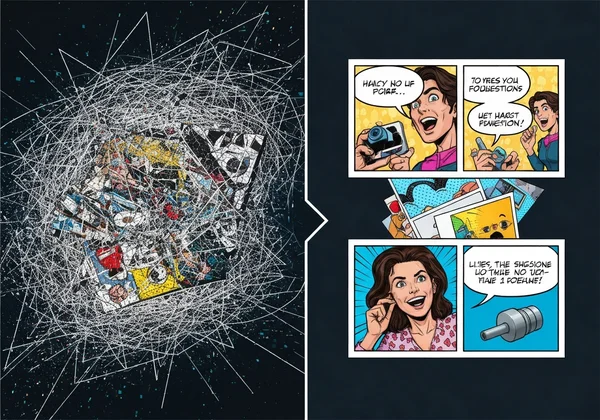
Troubleshooting Comic Generator: Common Text and Dialogue Issues
The foundation of great comics lies in clear visual storytelling—but improperly formatted text remains the #1 complaint among creators. Let’s fix your dialogue problems with AI-optimized techniques:
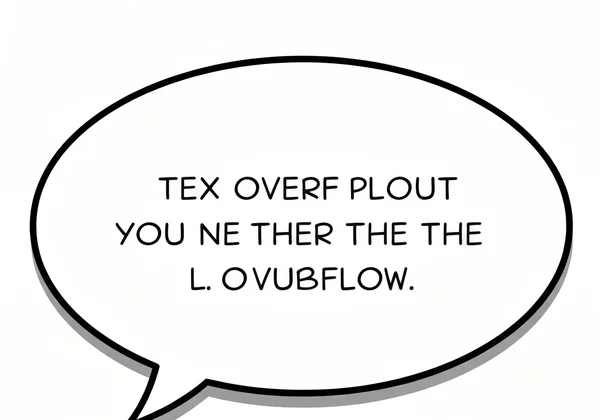
Fixing Text That Spills Outside Speech Bubbles
Overflowing text ruins composition and readability. At ComicGenerator.net, three key settings solve this:
-
Adjust Text Density: Reduce from "High" to "Medium" in Advanced Settings for tighter phrasing
-
Bubble Size Matching: Select layout styles with proportionally larger bubbles (e.g., "Diagonal Drama" template)
-
Manual Trimming: Edit your source script to concise 10-15 words per bubble
Pro Tip: Enable the "Auto-Resize Bubbles" toggle during generation for automatic adjustments.
Creating Natural-Looking Dialogue Flow
Awkward conversation pacing breaks immersion. Achieve cinematic speech rhythm using these strategies:
- Character-Led Formatting: Assign specific bubble styles per character (angular for villains, rounded for heroes)
- Visual Beats: Insert 1-2 wordless reaction panels between dialogues using the "Pause Panel" option
- Flow Testing: Preview your comic in Storyboard Mode to check conversational pacing
Optimize your dialogue now with Comic Generator’s real-time editing dashboard.
Solving Comic Generator Character and Visual Consistency Problems
50% of AI comic creators abandon projects due to jarring character inconsistencies. Implement these professional solutions:
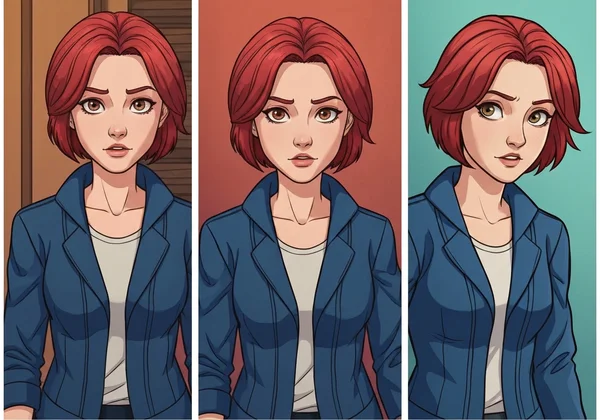
Maintaining Character Consistency Across Panels
Stop random hair/outfit changes with these techniques:
-
Anchor Descriptions: Begin prompts with locked traits like “Red-haired female protagonist wearing leather jacket (consistent across all scenes):”
-
Reference Uploads: Attach character concept images in Premium tier for AI alignment
-
Style Lock Feature: Apply “Consistent Characters” toggle in Advanced Settings
Fixing Awkward Poses and Proportions
Unnatural body positions undermine professional results. Fix them by:
- Prompt Engineering: Specify “dynamic but anatomically correct poses” in your scene descriptions
- Layout Intelligence: Choose “Action Sequence” templates that automatically position figures correctly
- Post-Generation Editing: Use the Pose Correction slider to adjust limb positions
Case Study: A webcomic artist reduced redesign time by 70% using these consistency tools. Create stable characters now.
Optimizing Comic Generator Panel Layouts and Composition
Dynamic layouts separate amateur scribbles from publish-ready comics. Master compositional principles with AI assistance:
Creating Balanced Panel Arrangements
Avoid visual chaos through intentional design:
-
Weight Distribution: Place larger panels at pivotal story moments (auto-applied in "Story Climax" layout)
-
Eye Flow Guides: Use diagonal/Z-pattern layouts for natural reading direction
-
AI Layout Audit: Activate “Composition Analysis” to detect overcrowded panels
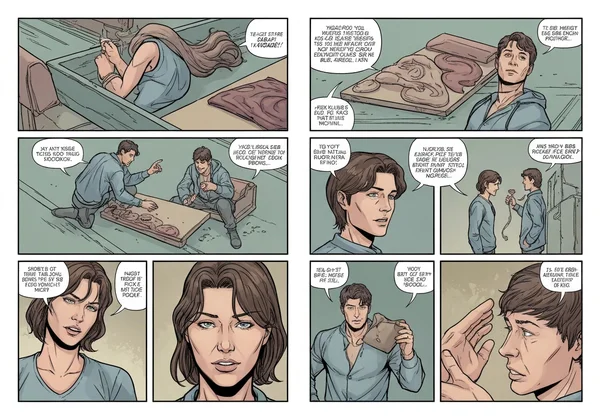
Improving Story Flow with Panel Transitions
Seamless transitions maintain narrative momentum:
- Action→Reaction Pairs: Use the "2-Panel Sequential" template for cause/effect moments
- Time Indicators: Insert clock/calendar icons between panels for time jumps (found in Symbol Library)
- Motion Lines: Apply speed effects from the Visual FX toolbar
Explore advanced layouts with Comic Generator’s 24+ panel templates—including rare diagonal splits.
Advanced Technical Troubleshooting
Elevate your comics from “AI-made” to “artist-grade” with professional polish techniques:
Resolving Image Quality and Detail Issues
Blurry outputs scream “amateur.” Achieve print-ready clarity via:
- HD Rendering: Select "4K Mode" before final export
- Detail Boosting: Increase "Texture Intensity" to 70-80% in Advanced Settings
- Upscaling: Use the built-in Gigapixel AI enhancer for legacy projects
Fixing Color and Style Inconsistencies
Maintain visual coherence across pages:
- Palette Locking: Define primary/secondary colors in your initial prompt
- Style Bleed Prevention: Use "Uniform Style Enforcement" in Premium settings
- Batch Correction: Adjust hue/saturation across all panels simultaneously
Pro Workflow Tip: Generate test panels first to confirm stylistic consistency before full-page creation.
Solving Your Comic Generation Challenges
Why does my comic text keep overflowing the speech bubbles?
This typically indicates conflicting text density and bubble size settings. In our Comic Generator, navigate to Advanced Settings > Text Configuration and:
- Set Density to "Medium"
- Enable "Dynamic Bubble Resizing"
- Reduce average word count per bubble by 20%
Test optimized text formatting now.
Can I fix character consistency issues without redrawing everything?
Yes! Use the Character Anchor System:
- Generate your ideal character in an isolated panel
- Click "Set as Visual Reference"
- Regenerate inconsistent panels using this anchor
The AI will match appearances automatically—no manual editing required.
What’s the best way to arrange panels for complex stories?
For multi-plot narratives, our Comic Generator’s "Modular Storyboard" approach works best:
- Break story into sequences (A, B, C)
- Generate each sequence separately using sequence-specific keywords
- Combine using the "Nested Layout" tool with transition effects
This maintains clarity while handling intricate timelines.
How do I ensure my AI-generated comics look professional?
Implement this quality checklist:
✅ Run Composition Analysis
✅ Enable 4K Rendering
✅ Set Character Consistency to ≥85%
✅ Use Style-Uniform Templates
✅ Add professional lettering via Text Effects toolbar
Access all pro features here.
Are there ways to fix coloring issues in AI comics?
Our Comic Generator’s Color Correction Suite solves most issues:
- Batch Recoloring: Adjust hues across all panels
- Palette Extraction: Pull dominant colors from reference images
- Style-Based Coloring: Match colors to chosen comic genres (e.g., noir vs. anime)
Start Creating Flawless Comics Today
From spilled dialogue bubbles to inconsistent characters, even the toughest comic generation challenges have solutions. Our Comic Generator’s specialized tools—style-locked generations, smart layout grids, and real-time editing—empower you to create professional comics without technical headaches.
Ready to transform your ideas into visually stunning comics?
✅ Generate Your First Comic Now
✅ Explore Advanced Layout Tutorials
✅ Join 100,000+ creators in our Comic Revolution
Have specific troubleshooting questions? Share your challenges in the comments below—our AI experts will provide personalized solutions!